Ps Controller for PS4 PS5
- 4.5
- Rating
- 100.00K
- Installs
- Free
- Price

 Analysis by App-foxy
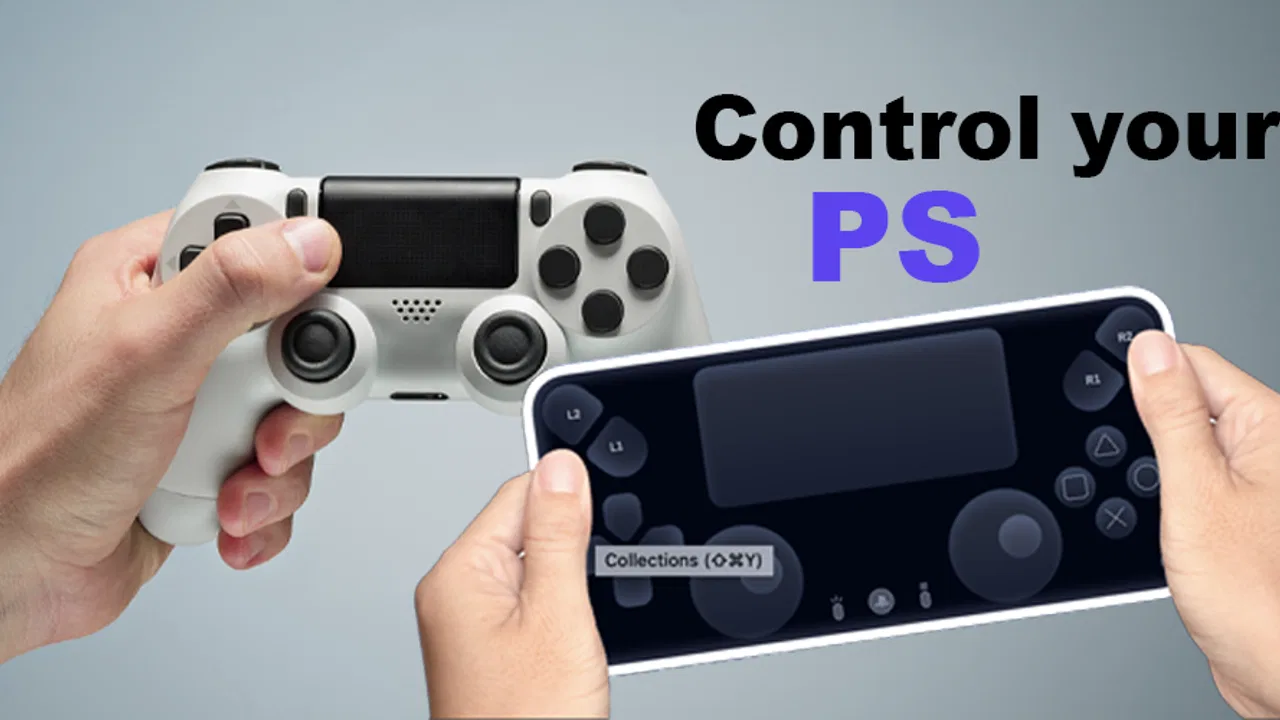
I approached Ps Controller for PS4 PS5 as a practical remote-control companion rather than a game in its own right. Its purpose is simple: make controlling and playing through a PlayStation setup easier from a phone. That narrow focus is useful because the app does not ask you to learn a large entertainment platform before reaching the feature you came for. At the same time, a remote-control app is only genuinely helpful when it fits the way you sit, hold, see, and interact with your devices. My experience is that this one is most interesting for people who want a more flexible control option, not for someone expecting a complete replacement for every physical controller.
The app sits in the Libraries & Demo section, which is a reasonable home for a utility built around device control. It is free, rated for Everyone, and developed by DTFHM. Its current version is 26.0, and it runs on Android 7.0 or later. Those details make it approachable for people using older compatible phones, although compatibility with the phone itself is only one part of the experience. Your console, network arrangement, and preferred way of playing still determine whether the app feels convenient or frustrating.
How the interface feels to read and navigate
The first strength I noticed is the directness of the idea. The short store description calls it “Ps Controller,” while the longer summary presents it as a way to remote-control and play more easily. In practice, that gives the app a clear expectation: open it, find the control surface, and try to use it. I did not approach it looking for a library of games, social features, or a complicated account dashboard, and that helped me judge it on the right terms.
You May Also Like

 Blood Strike: 2.5 Anniversary
Blood Strike’s Loadouts Turn Every Drop Into a Tactical Gamble
A close look at Blood Strike’s custom loadouts: how fast access to signature weapons reshapes its battle royale rhythm, rewards preparation, and narrows the gap between fights.

 Pandora - Music & Podcasts
Pandora’s Music Is Easy to Start, but Harder to Recover
Pandora’s strength is its low-effort path from a seed to a station. Its weak spot is how much confidence it asks you to place in connection, setup, and quiet recovery.

 8 Ball Pool
 Is Built on Rivalries, Rematches, and Routine
A close look at the rivalries, rematches, shared routines, and unanswered safety questions that turn a quick pool match into a persistent mobile community.

 Samsung Music
’s Quiet Strength Is Playing What You Already Own
Its reach comes less from spectacle than from dependable access to a personal library. That simplicity is both the app’s strongest retention engine and its ceiling.

 AccuWeather: Weather Radar
AccuWeather Review: A Quick, Clear Forecast for Everyday Decisions
For everyday plans, the best forecast is the one you can understand quickly. AccuWeather makes rain timing, radar, and local conditions easy to act on, with a few trade-offs.

 Hill Climb Racing
Why Hill Climb Racing Still Turns Crashes Into One More Run
A tiny car, a bumpy hill and one more upgrade: Hill Climb Racing keeps resurfacing because its simple chaos makes every near-miss feel personal.
More From Our News Desk
View All News


For users with limited attention, reduced concentration, or a preference for uncomplicated layouts, a focused controller app can be less tiring than a crowded companion application. There are fewer conceptual layers to understand than in an app that combines messaging, game discovery, clips, purchases, and remote play in one place. That simplicity is not the same as guaranteed accessibility, but it can reduce the mental work involved in getting started.
Readability matters here because controller controls are usually consulted while attention is directed elsewhere. I found it more useful to think of the display as a control map than as a page to read. Large, clearly separated touch targets are easier to locate at a glance than tightly packed buttons, especially when the phone is resting on a table or held at an awkward angle. If you use Android display enlargement, system font changes, or other visual adjustments, check the layout carefully before relying on them during play. Enlarging text does not always improve a controller surface, because it can change spacing or make parts of the interface less comfortable to reach.
My practical suggestion is to open the app in a calm setting and identify the main controls before starting a game. This sounds obvious, but it matters more with touch controls than with a physical pad: a finger can cover a virtual button, and visual feedback may be easy to miss when the screen is moving. I would also keep the phone orientation consistent. Repeatedly changing how you hold it can make muscle memory less reliable, particularly for anyone with coordination difficulties.
There is a useful distinction between “easy to understand” and “easy to operate.” The concept is easy to understand. Operating a phone as a controller can still require more visual checking than a familiar physical PlayStation pad. A person who depends on tactile landmarks may find a flat touchscreen less predictable, even if the on-screen arrangement looks clean. That is the first important trade-off: the app can simplify access to remote control while removing the physical cues that many players use without thinking.
Why the phone screen changes the control experience
A physical controller gives your thumbs a stable resting place and lets you identify many controls by shape and position. A phone offers a smooth surface, so the same action may require looking down to confirm where your finger is. For short navigation tasks, that may be perfectly acceptable. For fast games, it can become a real burden. I would therefore judge the app differently for browsing menus, starting media, or moving through a console interface than for demanding action where split-second input is central.
This is also where screen size becomes a personal issue. A larger phone may make virtual controls easier to see, but it can be harder to hold for long periods. A smaller phone may be lighter and easier to grip, but its touch targets can feel crowded. Rather than assuming that one arrangement works for everyone, I recommend testing the app with the phone in the position you actually use: flat on a surface, supported in both hands, or held in one hand while the other performs the controls.
People who are sensitive to visual clutter may appreciate keeping the session limited to the controls they need. People who have low vision may benefit from a bright, uncluttered environment and system-level display adjustments, but should not assume that every visual change will translate neatly to the virtual controller. The most reliable test is simple: can you find the important control without repeatedly shifting focus away from the television or console?
Motor, sensory, and situational access
The strongest accessibility argument for this app is flexibility of position. A physical controller needs to be within reach and held in a particular way. A phone-based controller can be placed where it is easier to see or reach, which may help someone who cannot comfortably use a standard pad for every task. A player recovering from an injury, dealing with limited grip strength, or trying to avoid a particular arm position may find that changing the phone’s location makes remote control more manageable.
That benefit has limits. Touch input does not automatically reduce physical effort. It can replace button presses with repeated taps or sliding movements, and a phone can be tiring to stabilize. If your hands shake, accidental touches may be more likely. If you have reduced finger isolation, adjacent virtual controls may be difficult to use accurately. If you have joint pain, holding a relatively thin device without a physical grip may be less comfortable than using a shaped controller. In those cases, the app may work better for brief console navigation than for a long play session.
One non-obvious use is separating control from posture. Instead of sitting directly in front of the console with a controller held at chest height, you may be able to place the phone on a nearby support and operate it from a position that reduces neck, shoulder, or wrist strain. I would treat this as an experiment rather than a promise. A stable stand can help, but an unstable surface can create a new problem: the phone moves whenever you touch it, forcing you to chase the controls.
Another useful workflow is to use the app for the parts of a session that are least demanding, then switch to a conventional controller when precision becomes important. For example, I can imagine using a phone-based control method to wake the setup, move through menus, or make a quick adjustment, while keeping a physical pad available for a game that depends on tactile feedback. That hybrid approach is more realistic than insisting that one tool must replace everything.
For sensory preferences, the benefit is mainly about changing the physical interaction rather than eliminating stimulation. The television remains part of the setup, and the app does not turn a visually busy game into a quiet experience. Someone who prefers not to handle a vibrating controller may find a phone more comfortable, but the phone’s own screen, touch feedback, and the game display still need to be considered. If you are sensitive to glare, reflections, or rapid visual switching, position the phone so that you are not constantly looking between two bright screens.
People who are deaf or hard of hearing may not depend on controller sounds in the same way as other players, but the important question is whether visual confirmation is clear enough for the task. People with limited vision may face the opposite challenge: a touchscreen lacks the physical landmarks that make a controller usable without looking. I would not describe the app as universally accessible; I would describe it as an additional control route that may suit some bodies and situations better than a standard pad.
A realistic everyday scenario
Imagine that the console is connected to a television in a shared room, while you are seated slightly to the side because another person is using the main viewing area. A physical controller may still work, but reaching for it, keeping it positioned, or passing it around can be awkward. A phone-based controller gives you another way to interact without needing to sit in the usual central position. For a short menu task or a casual session, that difference could be meaningful.
Another scenario is a player who wants to control the console from a supported position after a long day, without keeping both arms raised around a traditional pad. The phone can be placed closer to the more comfortable side, and the user can decide whether to hold it or rest it. The trade-off is that resting a phone may reduce grip fatigue but also reduce control precision. I would test the setup with low-pressure tasks first, then decide whether it is suitable for longer use.
Families may also find the app useful as a spare option. If the usual controller is being charged, misplaced, or used by someone else, a free app can provide a convenient fallback. Still, a fallback is not automatically a full substitute. A household should keep expectations realistic, especially when several people need reliable, simultaneous control or when a game requires fast, tactile input.
Where the app helps and where barriers remain
The biggest remaining barrier is the gap between remote control and complete game control. The app’s purpose points toward easier control, but “easier” depends on the task. Navigating a menu is not the same as playing a precision-focused title. A virtual control layout can be perfectly adequate for simple input and still feel unsatisfying when you need to press several controls quickly, maintain a steady thumb position, or act without looking.
Connectivity is another practical consideration. A remote controller depends on communication between the phone and the PlayStation environment, so the quality of your local setup matters. I would not begin by testing it during an important match or a shared family event. First, try a short session close to the console, confirm that inputs behave as expected, and then test the position where you normally intend to use the app. This workflow separates a control problem from a placement or network problem.
It is also worth planning for interruptions. A phone used as a controller is still a phone. Notifications, incoming calls, accidental gestures, low battery, or the need to use another app can break the session in ways that do not affect a dedicated controller. For users who rely on predictable routines, enabling an appropriate focus mode and keeping the phone charged may make the experience less disruptive. Those are not special features of the app; they are sensible ways to reduce the weaknesses of using a multipurpose device.
Some users will want a controller that can be learned by touch. This app is not the obvious choice for that need. A physical PlayStation controller offers consistent shapes, travel, resistance, and tactile boundaries. If you have low vision, limited finger control, or a strong dependence on muscle memory, compare the app with an accessible physical controller before deciding to make it your main option. The phone approach is more adaptable in placement, but less informative through touch.
Others may be looking for advanced customization, detailed remapping, or a broad remote-play ecosystem. I would be cautious about choosing a narrowly focused controller app for those expectations. Its appeal is the direct route to remote control, not the promise of a large suite of tools. If your priority is a mature platform with extensive settings, account integration, or established support for specialized hardware, the usual official or dedicated alternatives may be a better fit.
There is also a social barrier that is easy to overlook. A phone can look like an ordinary personal device, which may be helpful in a shared space, but it can be less obvious to another person that you are controlling the console. A physical pad communicates its purpose immediately. When several players are taking turns, that clarity can matter. I would use the app confidently as a personal or backup option, but I would not assume it will make group play simpler.
Who should try it first
I think the best candidates are Android users who want a free way to explore phone-based control for a PS4 or PS5 setup, especially those who value flexible positioning or need an occasional alternative to a physical pad. The app has reached over one hundred thousand installs and holds a 4.4 average from around one thousand three hundred ratings, which suggests that the concept has found a meaningful audience. Those figures do not tell me whether it will suit a particular person’s hands or network, but they do make it reasonable to test rather than dismiss.
It is also a sensible experiment for someone who has an older compatible Android phone. Since it supports Android 7.0 and later, the minimum software requirement is not especially demanding. I would still avoid judging it from the operating-system requirement alone: a phone that technically runs the app may not be the most comfortable device for sustained touch control.
I would skip it as a primary solution if you need guaranteed tactile feedback, highly precise competitive input, or a controller that can be operated without looking. I would also be cautious if your phone is your only communication device and interruptions would be costly. In those situations, a dedicated physical controller is the safer everyday choice, while this app can remain a backup for navigation or occasional use.
My inclusive verdict after using it as a control alternative
Ps Controller for PS4 PS5 makes the most sense when viewed as an extra doorway into console control. It can reduce the need to sit in one exact position, provide a free fallback, and offer a different physical interaction for people who do not always find a standard controller comfortable. Those are meaningful advantages, particularly in shared rooms, temporary setups, or short sessions.
Its limitations are just as important. A touchscreen cannot reproduce the tactile landmarks of a physical pad, and changing the controller’s form does not remove every motor or sensory demand. Some players will find the phone easier to place but harder to operate accurately. Others will appreciate the lack of a traditional grip but dislike having to look down to confirm a control. The right answer depends on whether your main barrier is reaching the controller, holding it, identifying its buttons, or producing precise input.
With a 4.4 average and free access, I see little reason not to test it if your Android device meets the requirement and you are curious about a phone-based option. Start with simple navigation, use a stable resting position, and keep a physical controller nearby until you know how the app behaves in your setup. That approach also makes the accessibility question personal and practical instead of theoretical.
My final recommendation is therefore conditional but positive: try it if flexibility and convenience matter more than tactile precision. Keep the conventional controller if you need dependable physical feedback, long-session comfort, or advanced control confidence. For me, the app’s value is not that it replaces every alternative; it is that it gives people another way to interact with a PS4 or PS5, and sometimes that extra option is exactly what makes a setup usable.
FAQs for Ps Controller for PS4 PS5
01What is the main functionality of the Ps Controller for PS4 PS5 app?
The Ps Controller for PS4 PS5 app allows users to transform their Android or iOS devices into a functional controller for PlayStation 4 and PlayStation 5 consoles. It provides features like touchpad support, motion sensors, and button mapping, offering a seamless gaming experience for those who need an alternative to the traditional DualShock or DualSense controllers.
02Is the Ps Controller app compatible with all games on PS4 and PS5?
While the Ps Controller app is designed to work with most games on PS4 and PS5, compatibility can vary. Some games may not fully support all features like motion control or touchpad functionalities. It's advisable to check the app's support documentation or user feedback for specific game compatibility to ensure the best experience.
03Does the Ps Controller app require an internet connection to function?
Yes, an internet connection is necessary for initial setup and to maintain a stable connection between your mobile device and the PlayStation console. A Wi-Fi connection is recommended for the best performance, as it reduces latency and ensures smoother gameplay compared to mobile data connections.
04Are there any in-app purchases or subscriptions required to use the Ps Controller app?
The Ps Controller app is free to download and use; however, it may offer in-app purchases or subscriptions to unlock additional features or remove ads. Users should review the app's description on the App Store or Google Play to understand any potential costs involved before downloading.
05How does the Ps Controller app compare to a physical PlayStation controller?
The Ps Controller app offers a convenient alternative to physical controllers, but it may not fully replicate the tactile feedback and precision of a DualShock or DualSense controller. While it provides basic functions and is useful in a pinch, serious gamers might find it lacks the responsiveness and comfort of a traditional controller.
Pros
- Easy pairing with PS4 and PS5 consoles.
- Smooth and responsive control experience.
- Compact design fits comfortably in hand.
- Customizable button mapping options.
- Long battery life for extended gaming.
Cons
- Limited support for non-PlayStation games.
- No haptic feedback on older models.
- Price is higher than generic alternatives.
- Some users report occasional connectivity issues.
- Limited color options available.

Ps Controller for PS4 PS5
Gallery